We are excited to announce that Empathia's Chrome Extension now supports recording directly with CHR Electronic Medical Record. This integration allows you to record, apply your personalized templates & push completed notes directly to the patient chart.
Here is a quick guide to walk you through the set up & workflow.
1. Download & Install Empathia's Google Chrome Extension from the Chrome web store - https://chromewebstore.google.com/detail/empathia-ai/gblgngeenfkccjffanpllecfgilnkchp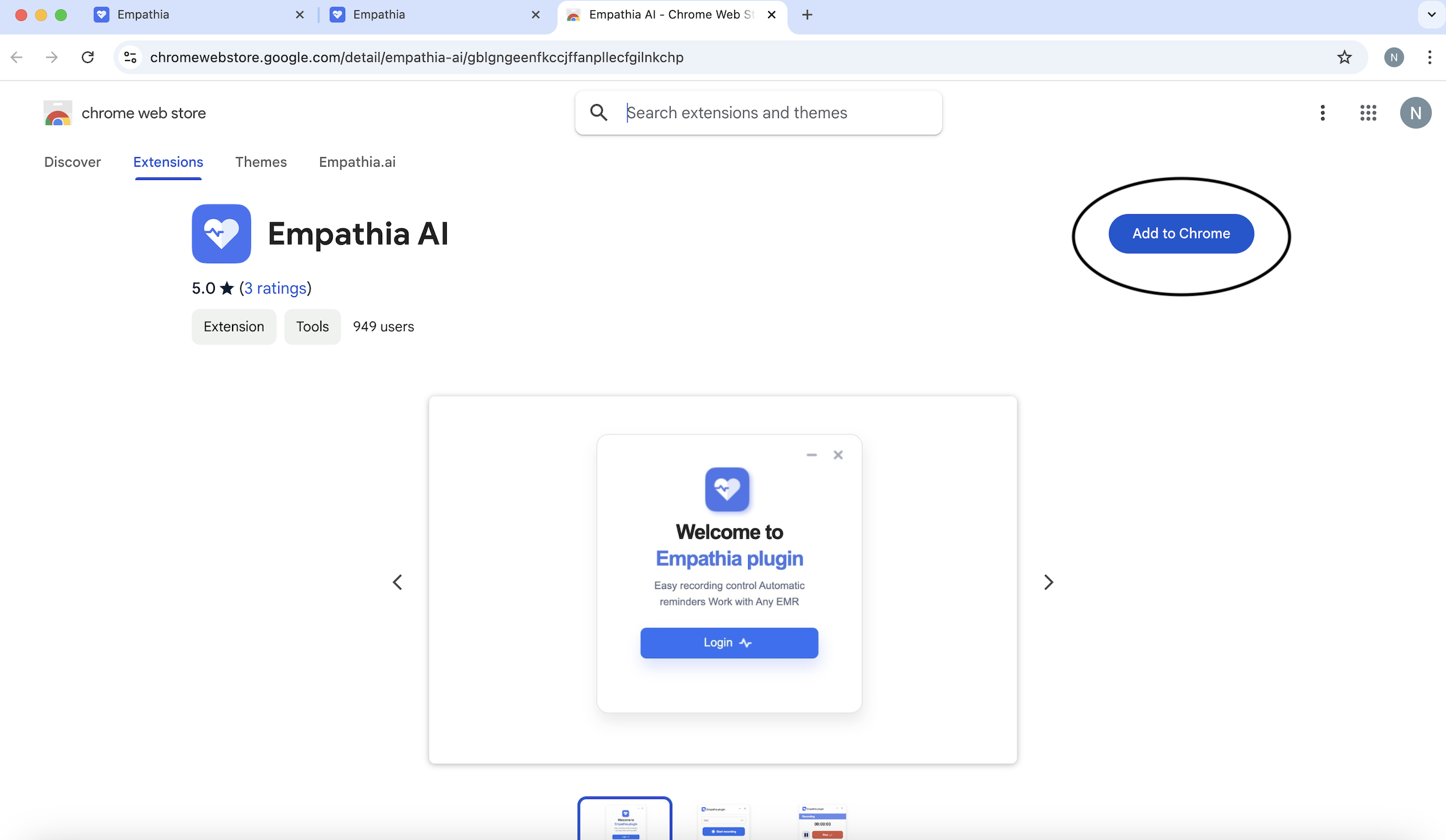
2. Once installed, log in to the Chrome Extension with your Empathia user name & password. 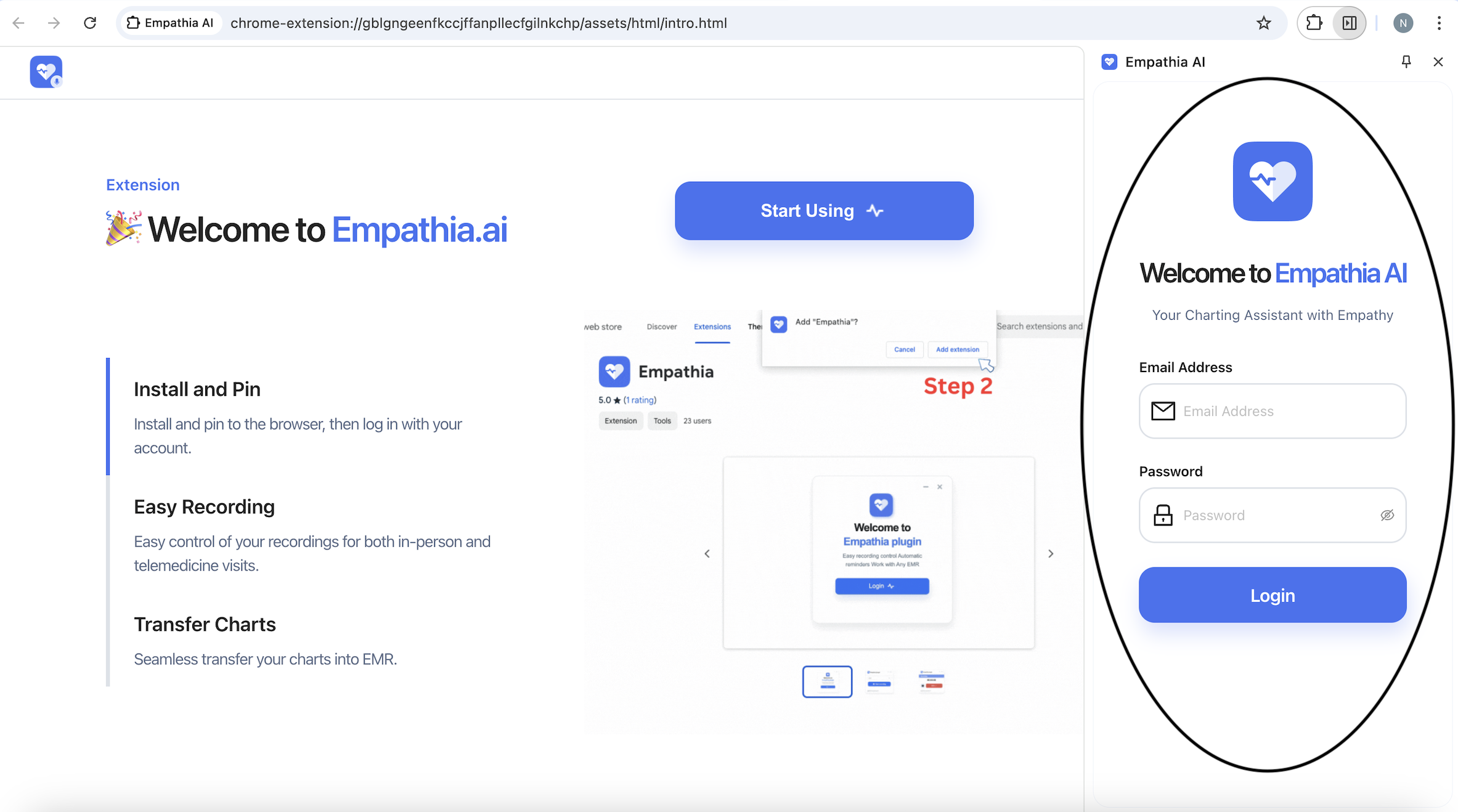
3. After the extension is installed, open a patient's encounter in CHR. A floating Empathia microphone icon will appear on the side of the page. 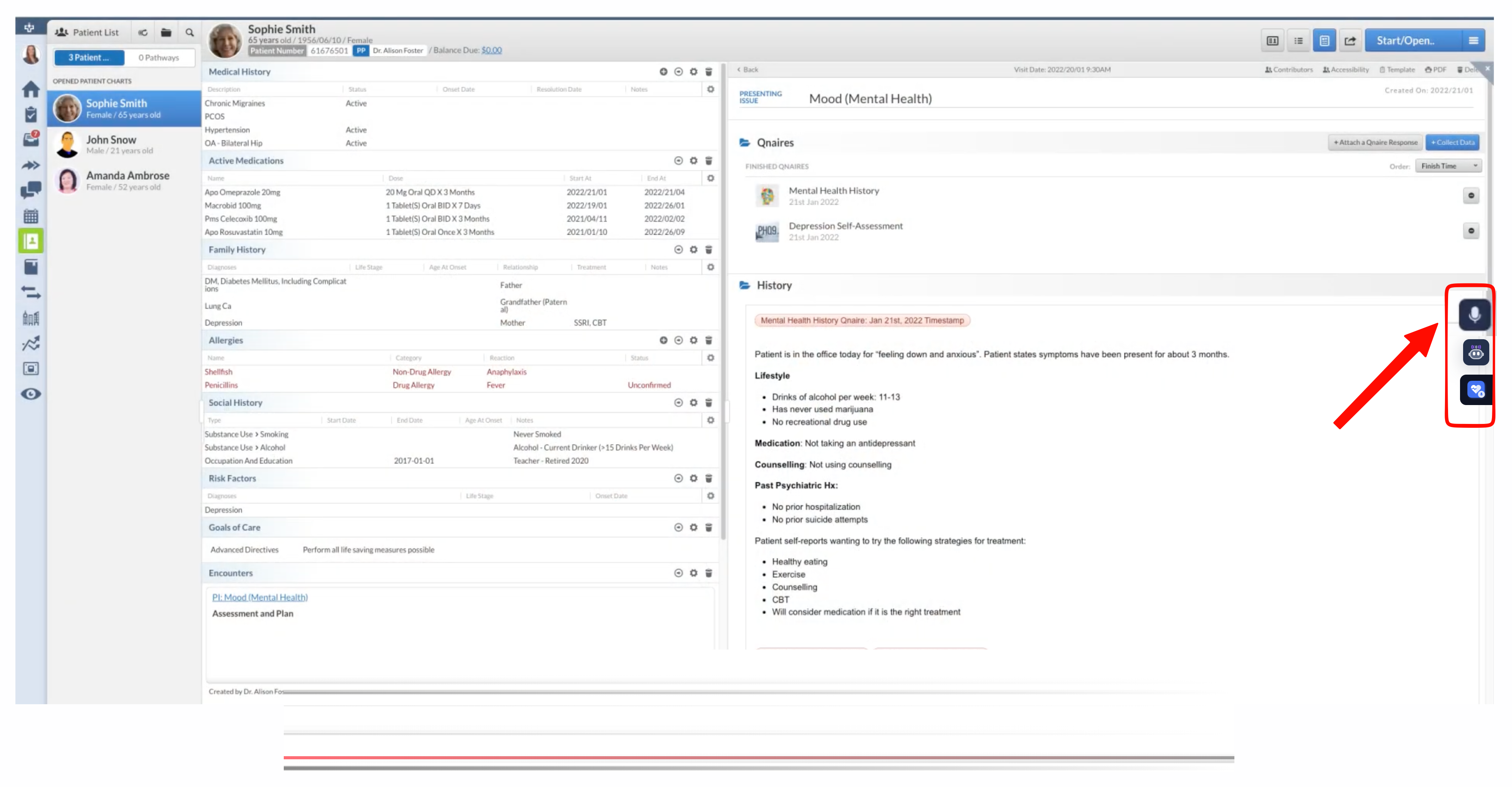
4. Click the microphone icon to start recording. Once the recording is complete, Empathia will automatically generate the clinical note.
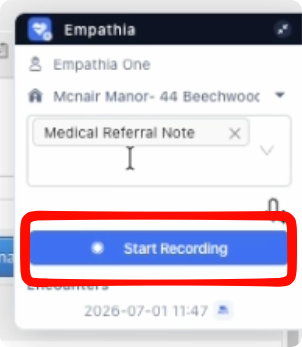
5. Click the icon next to the encounter's date and time to review the generated note. Then click the floating copy button to insert the note into the patient chart.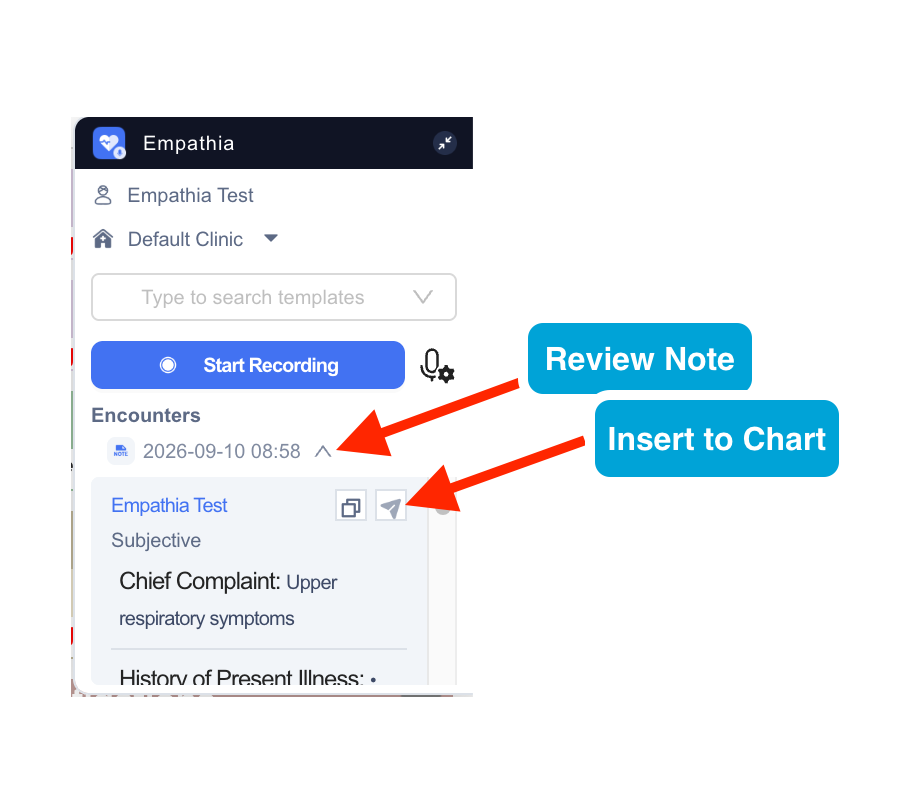
Tips for Success -
1. Ensure that the audio permission is granted for the browser.
2. Once Empathia's Chrome extension is installed, remember to log out & back in to your CHR account.
3. For any further questions or troubleshooting assistance, please reach out to support@empathia.ai
Was this article helpful?
That’s Great!
Thank you for your feedback
Sorry! We couldn't be helpful
Thank you for your feedback
Feedback sent
We appreciate your effort and will try to fix the article